User Manual
PyroQuest VR/AR Fire Trainer
The PyroQuest VR/AR Fire Extinguisher Simulator is a next-generation fire safety training tool that combines virtual reality (VR) and augmented reality (AR) technologies to provide effective, realistic, and safe training opportunities.
Manufacturer and Distributor: VR Solutions Hungary Kft. 4034 Debrecen, Vágóhíd utca 2., Building 4, Unit 117.
Contact:
- Email: info@pyroquest.com
- Phone: +36 70 977 47 32
- Web: pyroquest.com
The simulator's goal is to prepare users for handling various fire incidents in lifelike situations while utilizing the most modern technological tools.
System Foundation
- Standard powder extinguisher integrated with VR headset
- Real-time feedback on correct or incorrect techniques
- Realistic movements and equipment
- Introduction
- System Components
- Getting Started
- Using VR Function
- Using AR Function
- Device Operation
- Maintenance and Troubleshooting
- Technical Support
Introduction
PyroQuest is a modern, innovative fire safety training tool that combines virtual reality (VR) and augmented reality (AR) technologies to ensure safe and effective firefighting training. The system allows users to practice firefighting techniques in realistic environments without having to deal with real fires or hazardous materials.
System Components
The PyroQuest package includes the following components:
- Pico 4 Ultra VR headset - with 4K+ resolution display, 90 Hz refresh rate
- VR-compatible fire extinguisher training device - providing a feeling equivalent to a real extinguisher's weight and handling
- External battery pack - ensures extended usage time, up to 5 hours
- Optional: Streaming device - for instructors to share the user's view
- Shock-resistant carrying case - for safe transport and storage of the system
Getting Started
System Preparation
- Check that the Pico 4 Ultra headset is fully charged. (IMPORTANT NOTE: the headset and battery pack can be charged separately. The battery pack serves to extend operating time.)
- Connect the external battery pack if you plan for extended usage; charge the devices after use. Do not store the devices in a discharged state for prolonged periods, as this may shorten battery lifespan.
- Remove the VR-compatible fire extinguisher training device from the carrying case.
- Set up the streaming device if multiple people will be following the training process. (See page 5 for ScreenCast or screen mirroring steps.)
Note: For AR simulation setup, it's recommended to remove the controllers from their mounts and replace them after configuration is complete.
Proper Controller Mounting
Mount the left controller to the tube as shown below, snapping the white circular clip into place.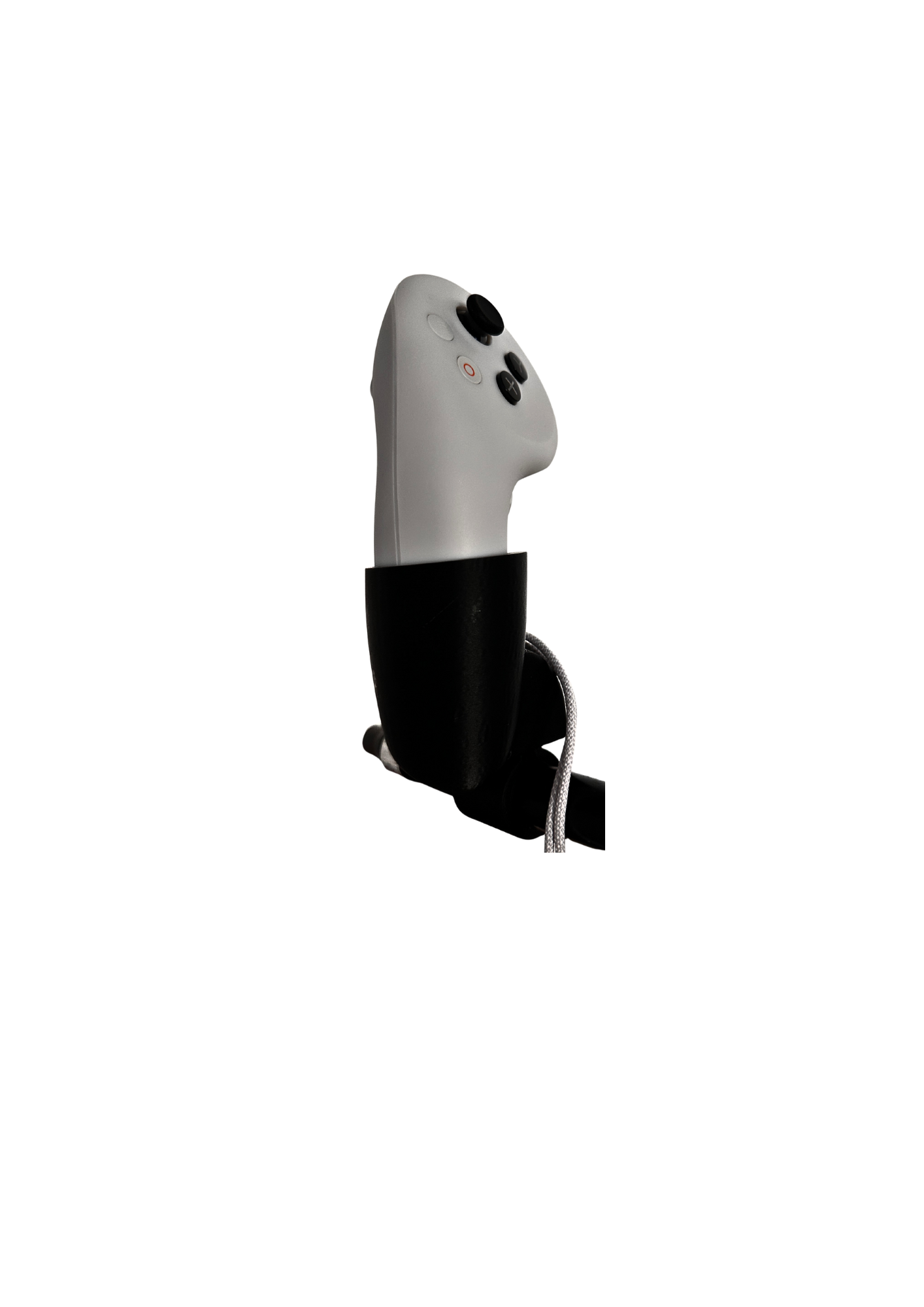
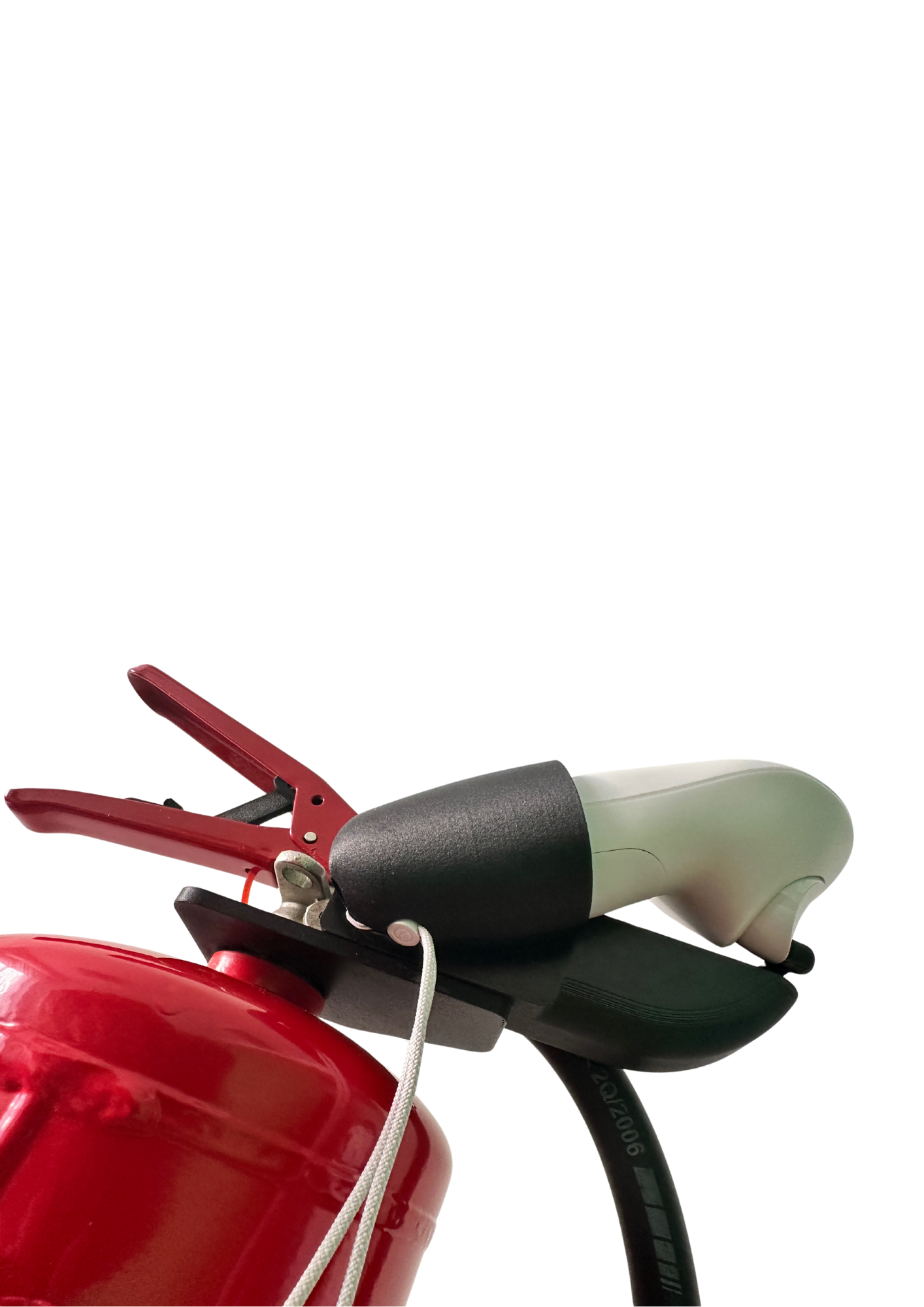
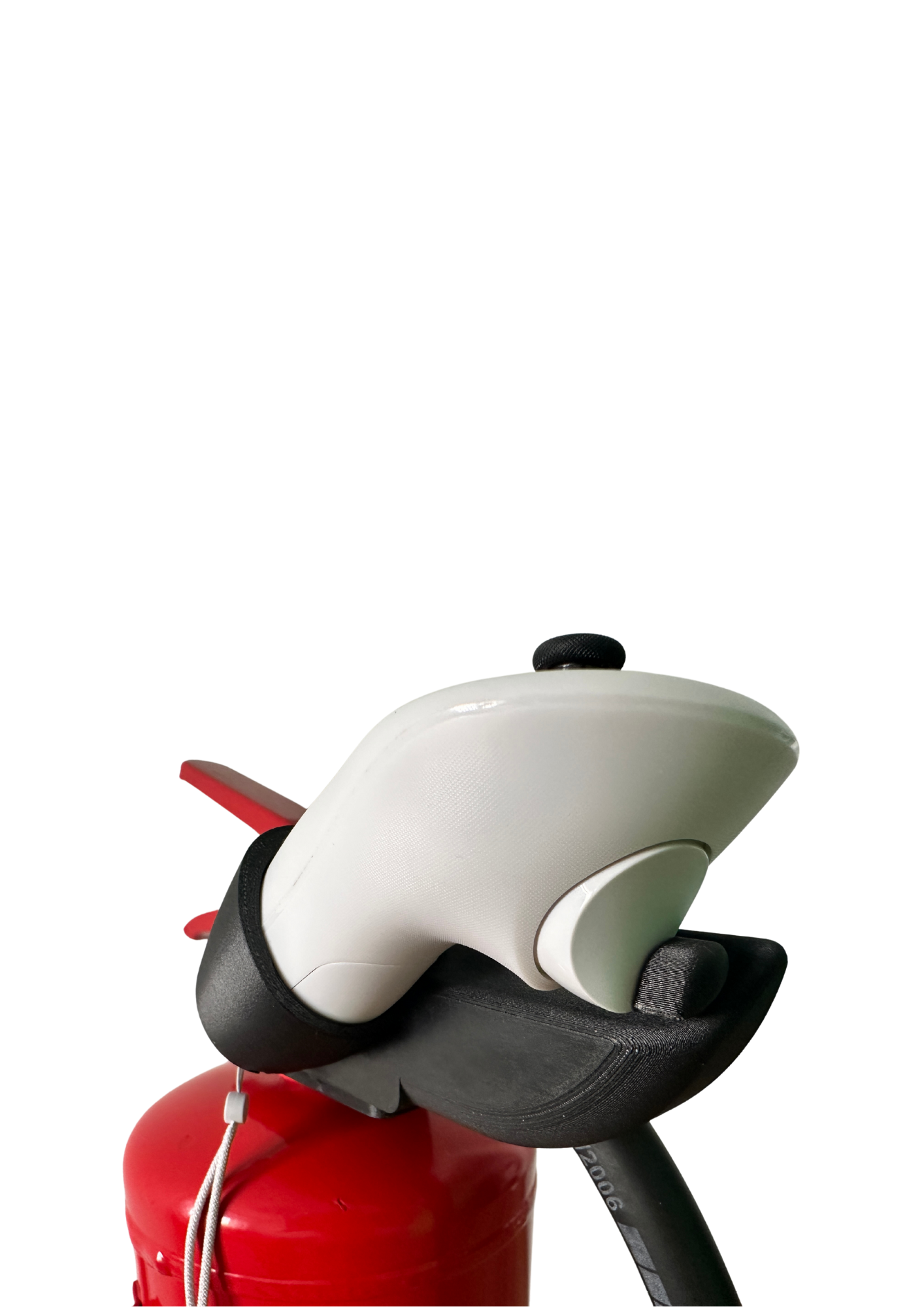
Mount the right controller as shown below. Snap the white circular clip into place. Check that the extinguisher operating lever pulls the TRIGGER button.
System Power-On
- Press the power button on the Pico 4 Ultra headset and wait for it to fully start up.

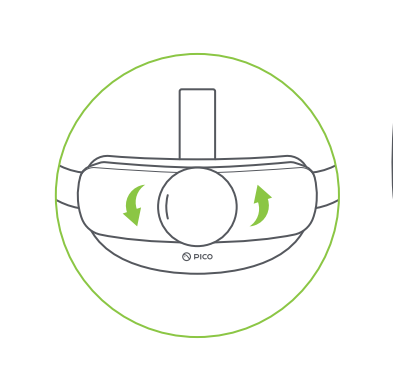
- Put on the VR headset and adjust the head strap comfortably using the rear rotating knob.

- If you wear glasses, use the spacer.


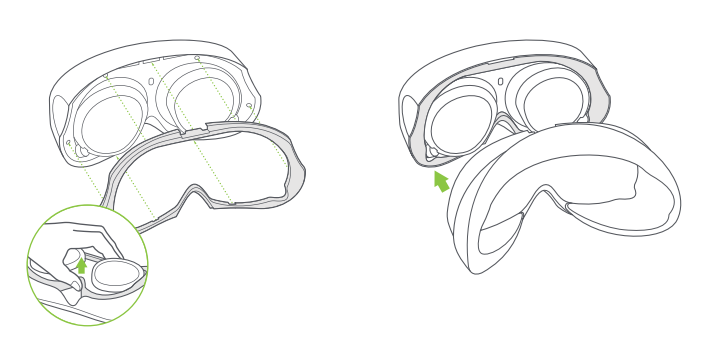
If necessary, adjust the lens distance for a clearer image. We recommend the middle setting by default.
ScreenCast (Screen Mirroring)
The VR headset image can be mirrored to almost any smart device using the AnyCast device.
Insert the AnyCast device into the HDMI port and connect the USB connector to the USB port as shown below.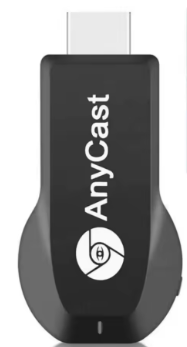
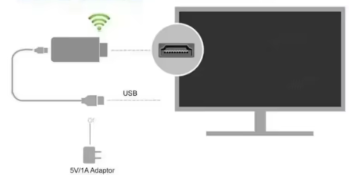
Select the HDMI input on the smart device.
From the Library  menu, select the Screencast option using the trigger button.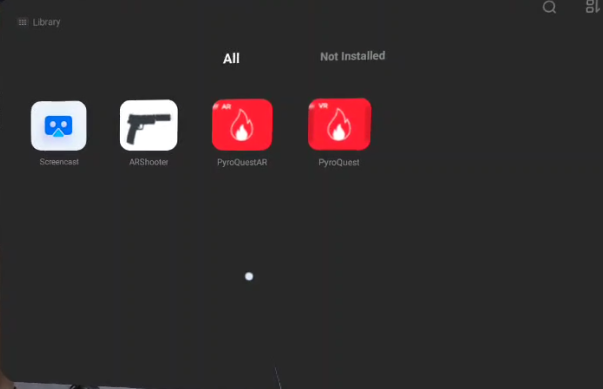
Click on the Cast to Smart TV icon.

Click the Connect icon. Screen mirroring will then begin. 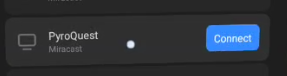
Using VR Function
The VR function allows you to practice firefighting in various pre-prepared virtual environments.
Launching VR Mode
- Select the PyroquestVR icon, point the cursor with the controller and pull the TRIGGER button, or if you haven't removed the joystick from its place, use the bottle operating lever, or direct the cursor with your gaze. After approximately 5 seconds, the cursor will automatically click.
- From the list that appears, select the fire scenario you wish to practice:
- Office fire
- Kitchen oil fire
- Warehouse fire
- Battery fire
- Select the appropriate extinguisher type for your objective. Use the joystick or look at the appropriate point, and the software will automatically click.

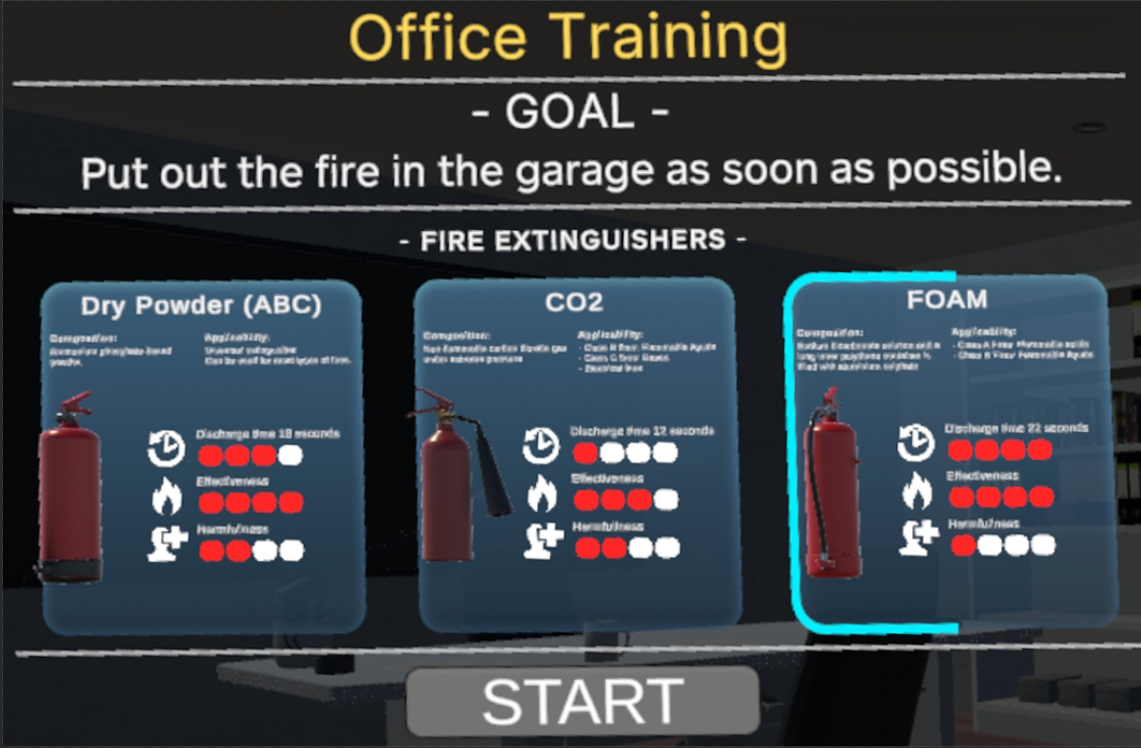
Navigation in VR Environment
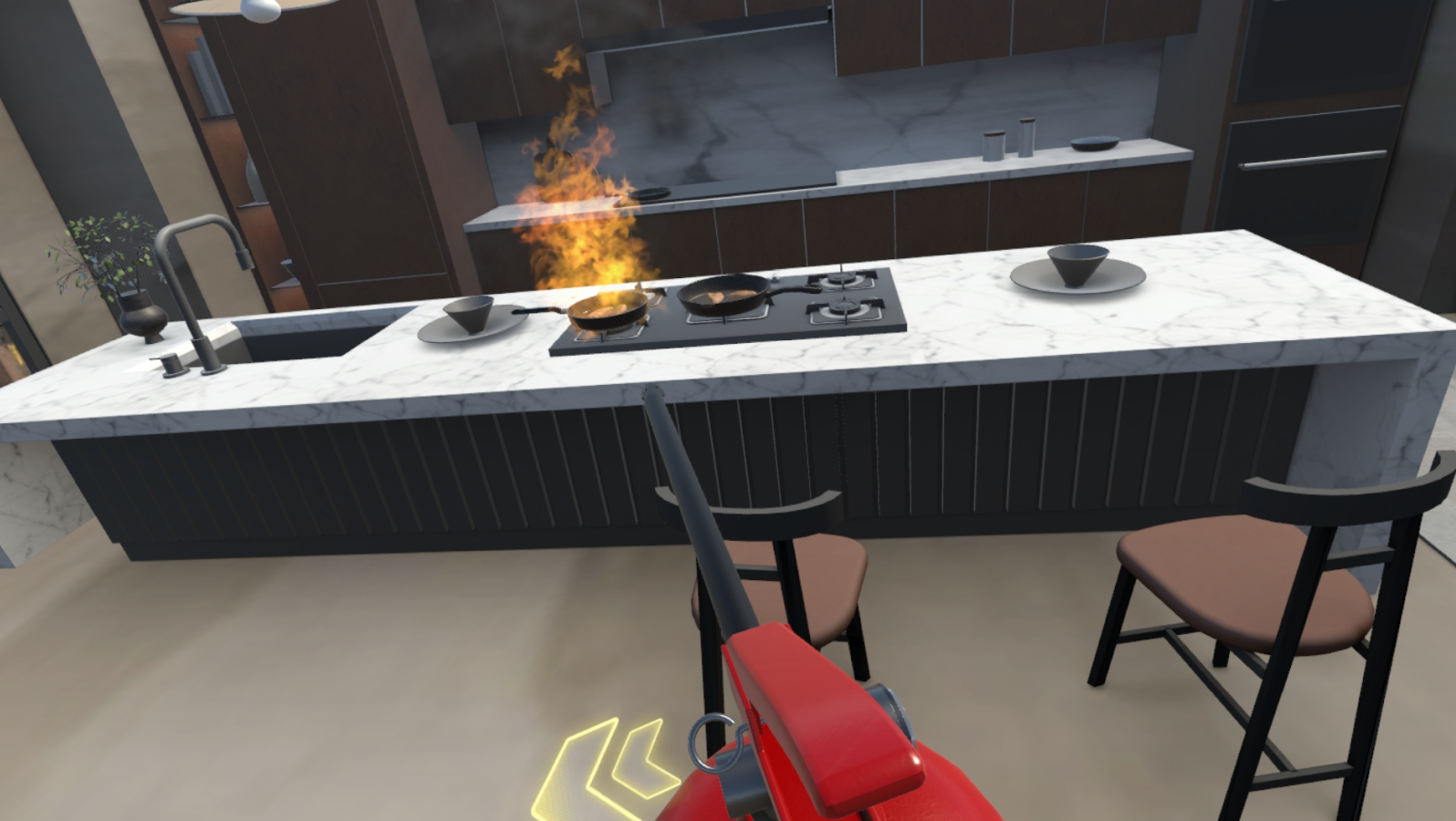
You can freely look around the virtual environment by turning your head. If the space is large enough, you can physically move in the Virtual Reality space; if this is not possible, use the joystick button. Important: remove the locking pin to operate the lever.
The VR-compatible extinguisher should be handled like a real extinguisher:
- Operable after pulling the safety pin
- Aim the extinguisher
- Pull the lever to extinguish
Executing Firefighting Practice
- When the simulation starts, assess the nature and size of the fire.
- Approach the fire from a safe distance.
- Prepare the extinguisher:
- Pull out the safety pin from the VR extinguisher
- Aim at the base of the fire
- Press the lever to discharge the extinguishing agent
- Execute the proper extinguishing technique:
- Use sweeping motions from one edge of the fire to the other
- Keep the extinguisher at an appropriate distance from the fire
- Observe how the fire responds to the extinguishing attempt
Completing VR Simulation
- After successfully extinguishing the fire or depleting the extinguishing agent, the simulation automatically ends.
- The system displays a performance evaluation (duration, technique, success).
- You can choose between "Retry" or "Return to Main Menu" options.
Using AR Function
The AR function allows you to place virtual fire sources in your own real environment.
Launching AR Mode
- Select PyroquestAR.
- Always ensure you perform the exercise in a well-lit area; avoid direct sunlight.
WARNING: If direct sunlight hits the glasses lenses, it can cause fatal damage to the display.
The software can remember locations where we have previously performed simulations. If we are in a completely new location, the glasses automatically recognize the furniture, walls, and doors around us. To set up the environment, follow the glasses' instructions. Walk around the location thoroughly, even multiple times.
- After setting up the environment, proceed with the Complete option.
Room Preparation
- Select the <Solid material fire> menu item with the TRIGGER button. A fire icon will appear at the end of the controller.
- Place the fire source at the desired location with the TRIGGER button. If you want to place multiple fire sources, click the TRIGGER button on the <Solid material fire> menu again.
- Optionally, you can select the <Combustible material menu item>. An x,y,z axis-symbolizing shape will appear. Mark the four corners of the combustible surface. If you place a fire source on or near the combustible surface, the virtual fire will spread across the surface.
- The selected area is indicated by a yellow rectangular prism. The fire will spread in this area. The extent of spread depends on the area size and how many fire sources we have designated.
- If you want to restart the operation, use the <Delete all> menu item.
Practice
AR Firefighting Practice
After placing the virtual fire, you should proceed as in VR mode:
- Approach the fire from a safe distance
- Prepare the extinguisher (by pulling out the safety pin; the pin must be physically pulled)
- Aim at the fire
- Press the lever to discharge the extinguishing agent
In AR mode, it is especially important to be aware of your surroundings, as you are moving in real space.
Execute the extinguishing with proper technique, observing the virtual fire's reaction.
Distance Meter Option
By pressing the Y button, you can see how far you are from the fire source. If you are too far away, the line turns white; if the distance is optimal, it's green; if you are too close (within 2 meters), it turns red.
![Distance meter illustration]
Completing AR Simulation
- After successfully extinguishing the fire or depleting the extinguishing agent, the exercise automatically ends. The simulation can last a maximum of 5 minutes. The simulation can be interrupted at any time using the A button on the controller.
- The system displays a performance evaluation.
Device Operation
VR Headset Adjustment
- Adjust the headset's head straps so they fit comfortably but snugly on your head.
- If necessary, adjust the lens distance for a clearer image.
- If you wear glasses, you can use the glasses-friendly setting.
Operating the Practice Fire Extinguisher Simulator
The VR-compatible extinguisher operates similarly to a real device:
- Hold the extinguisher with both hands: one hand on the handle, the other on the lower part
- After pulling the safety pin, you can start extinguishing by pressing the lever
- Direct the extinguisher at the base of the fire, not at the flames
- Use sweeping motions from one side to the other
Battery Management
- The Pico 4 Ultra headset has a built-in battery that allows approximately 2-3 hours of continuous use.
- By connecting the external battery pack, you can extend this time to up to 5 hours.
- You can check the charge level on the VR interface.
- Always charge the device when not in use.
Performance Measurement and Evaluation
The PyroQuest system creates detailed statistics after each exercise:
Evaluated Aspects
- Duration: How long the extinguishing took
- Distance: Whether extinguishing occurred from an appropriate distance
- Technique: Whether correct sweeping motions were applied
- Efficiency: How much extinguishing agent was used
- Final result: Whether the extinguishing was successful
Sharing Results
- Instructors can follow the exercise in real-time using the streaming device.
- The system can save results for training logging purposes.
- Based on statistics, instructors can provide personalized feedback.
Maintenance and Troubleshooting
Regular Maintenance
- Clean the headset with a soft, dry cloth.
- Wipe the lenses only with a microfiber cloth; avoid using chemicals.
- Check the physical condition of the extinguisher simulator to ensure there is no damage.
- Regularly charge the batteries, even if you do not use the device for an extended period.
WARNING: Always store the glasses in the case only when turned off.
The VR Headset Does Not Turn On
- Check if it is charged
- Hold the power button for at least 5 seconds
- Try connecting it to the charger, then turn it on again
The Extinguisher Simulator Does Not Respond
- Check the connection to the VR headset
- Restart the system
- Check if there is any physical obstruction to movement
- The batteries in the joysticks may drain; check them regularly
The Simulation Stutters or Freezes
- Restart the entire system
- Check if the headset has overheated
- Ensure there is sufficient free space for movement
Technical Support
If you need further assistance or experience any problems using the PyroQuest system, please contact VR Solutions Hungary Kft. specialists:
- Email: info@pyroquest.com
- Phone: +36 70 977 47 32
- Address: 4034 Debrecen, Vágóhíd utca 2. Building 4, Unit 117.
VR Solutions Hungary Kft. provides continuous support and development for the product, so you can always use the PyroQuest simulator with the latest features and updates.