Getting Started
System Preparation
- Check that the Pico 4 Ultra headset is fully charged. (IMPORTANT NOTE: the headset and battery pack can be charged separately. The battery pack serves to extend operating time.)
- Connect the external battery pack if you plan for extended usage; charge the devices after use. Do not store the devices in a discharged state for prolonged periods, as this may shorten battery lifespan.
- Remove the VR-compatible fire extinguisher training device from the carrying case.
- Set up the streaming device if multiple people will be following the training process. (See page 5 for ScreenCast or screen mirroring steps.)
Note: For AR simulation setup, it's recommended to remove the controllers from their mounts and replace them after configuration is complete.
Proper Controller Mounting
Mount the left controller to the tube as shown below, snapping the white circular clip into place.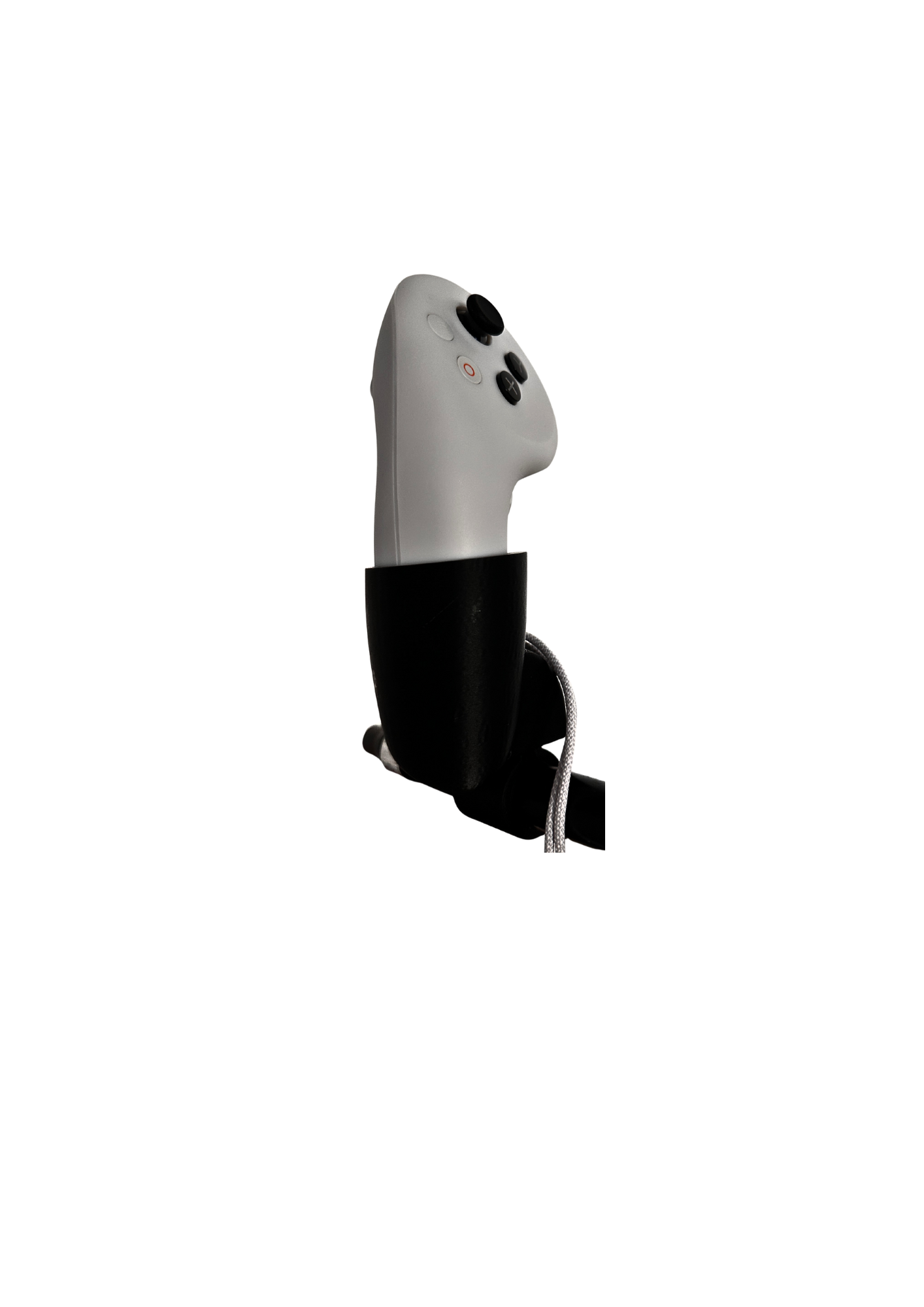
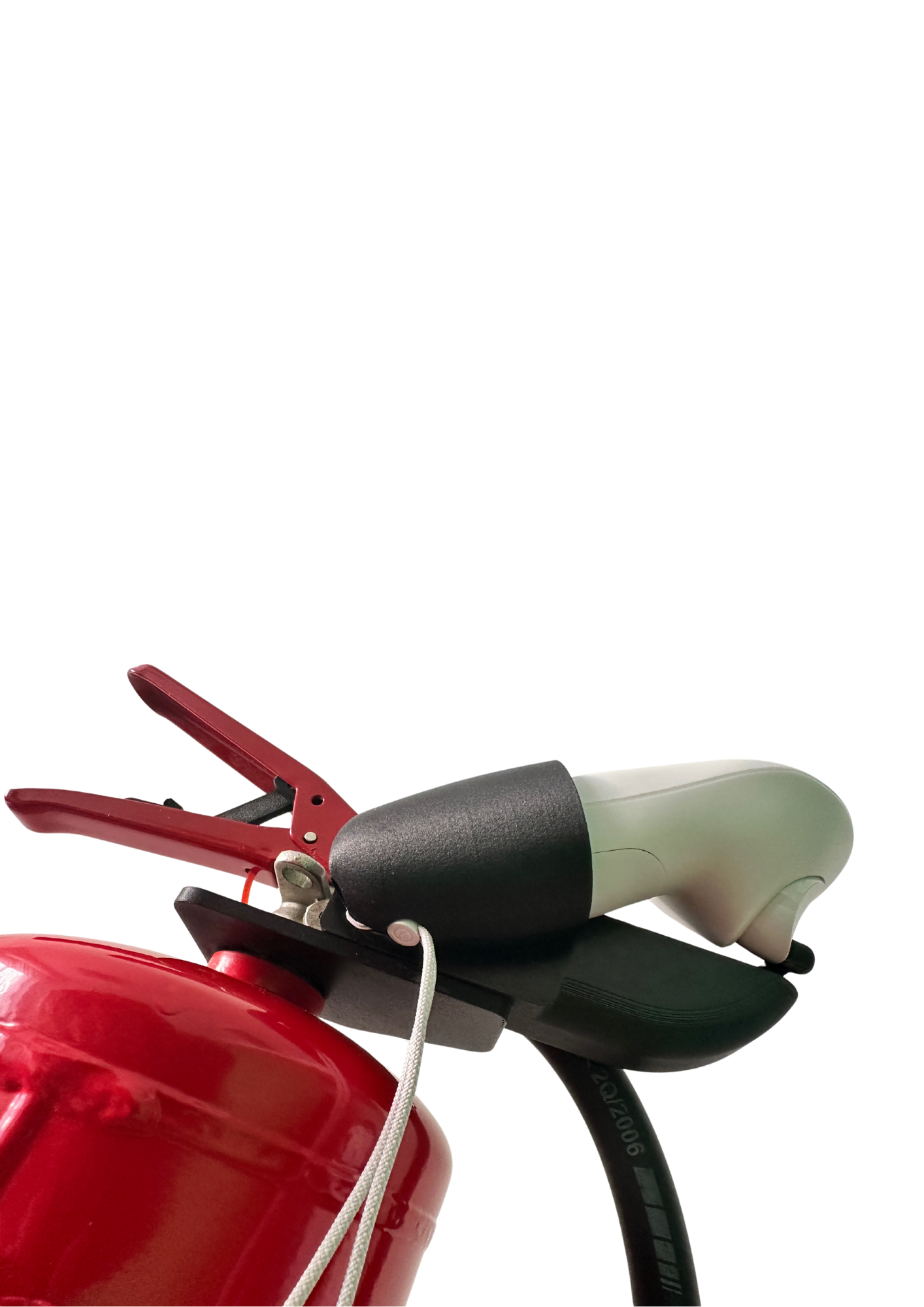
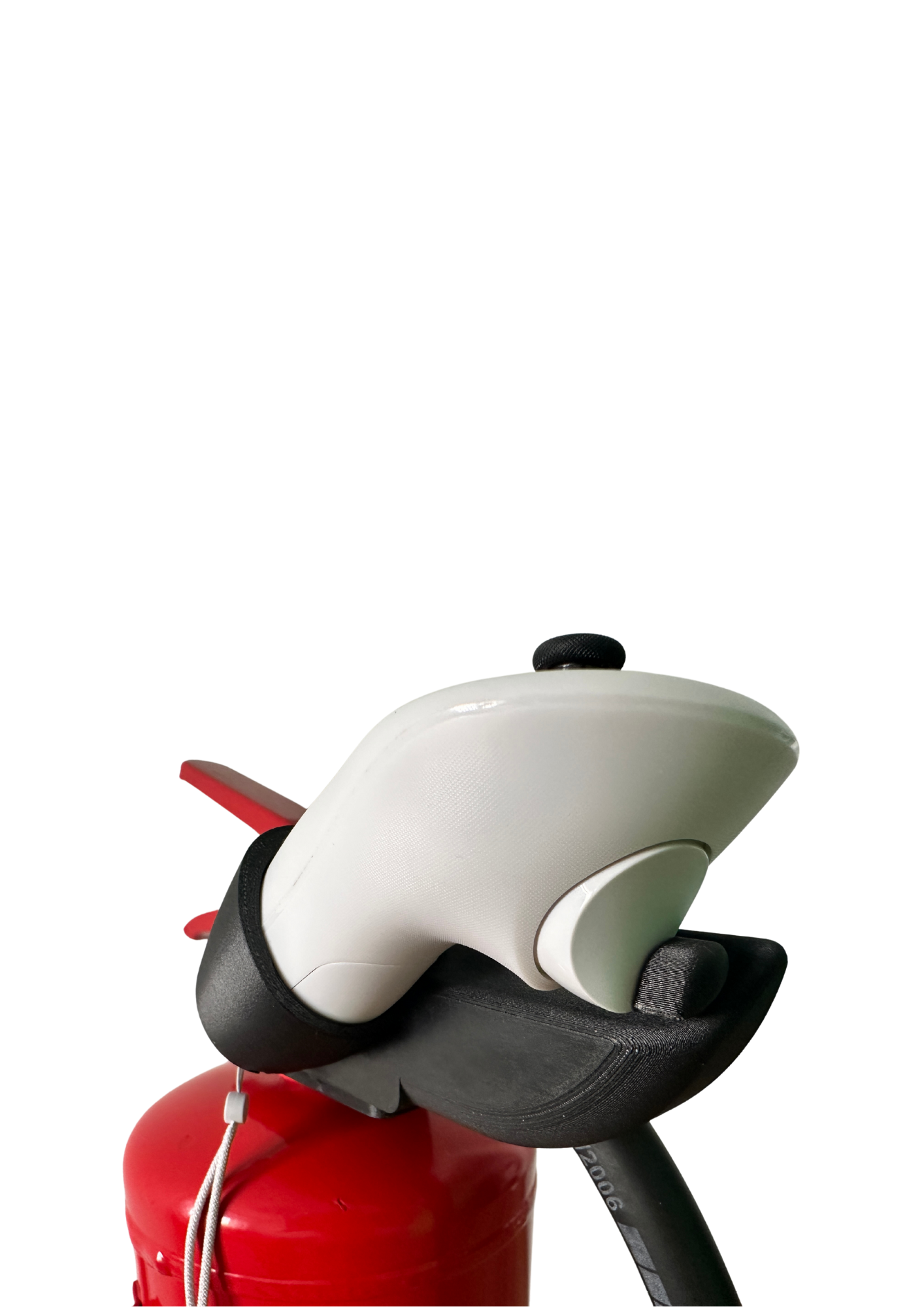
Mount the right controller as shown below. Snap the white circular clip into place. Check that the extinguisher operating lever pulls the TRIGGER button.
System Power-On
- Press the power button on the Pico 4 Ultra headset and wait for it to fully start up.

- Put on the VR headset and adjust the head strap comfortably using the rear rotating knob.

- If you wear glasses, use the spacer.


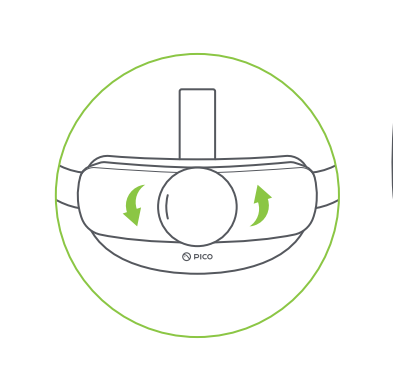
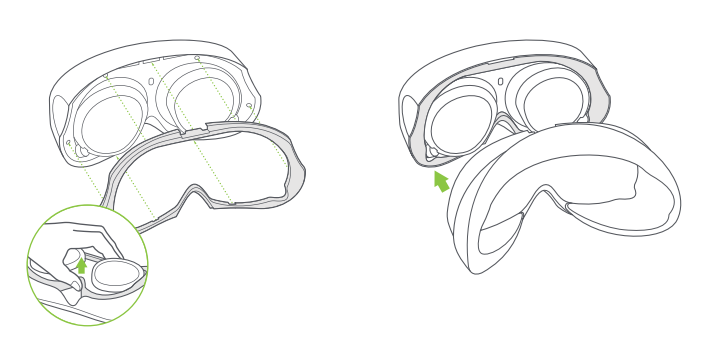
If necessary, adjust the lens distance for a clearer image. We recommend the middle setting by default.
ScreenCast (Screen Mirroring)
The VR headset image can be mirrored to almost any smart device using the AnyCast device.
Insert the AnyCast device into the HDMI port and connect the USB connector to the USB port as shown below.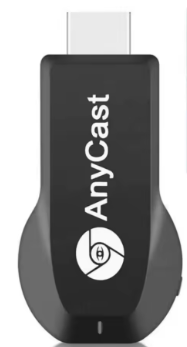
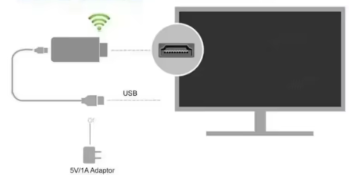
Select the HDMI input on the smart device.
From the Library  menu, select the Screencast option using the trigger button.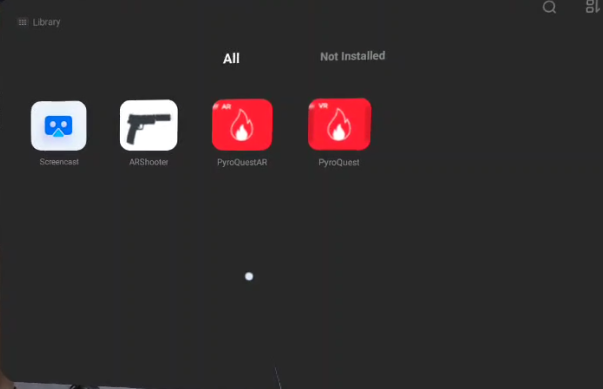
Click on the Cast to Smart TV icon.

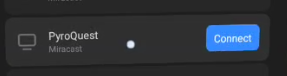
Click the Connect icon. Screen mirroring will then begin.